
Build a composition
Combine pages from several different reports into one ordered presentation, stored in your account.
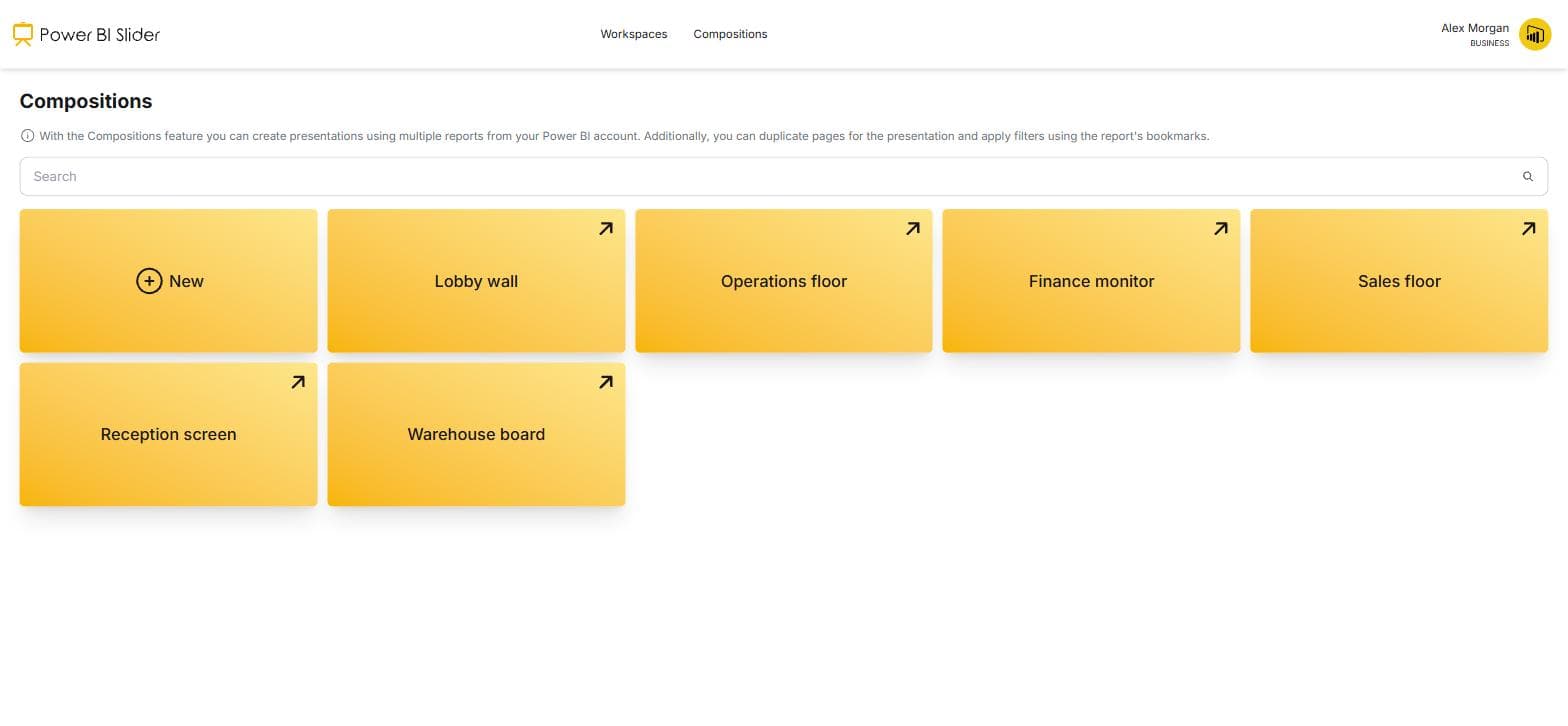
1.Open Compositions
Compositions live in their own menu, next to Workspaces. Unlike a single report's settings, compositions are saved to your account, so any screen you sign in on can open them.
2.Create a new composition
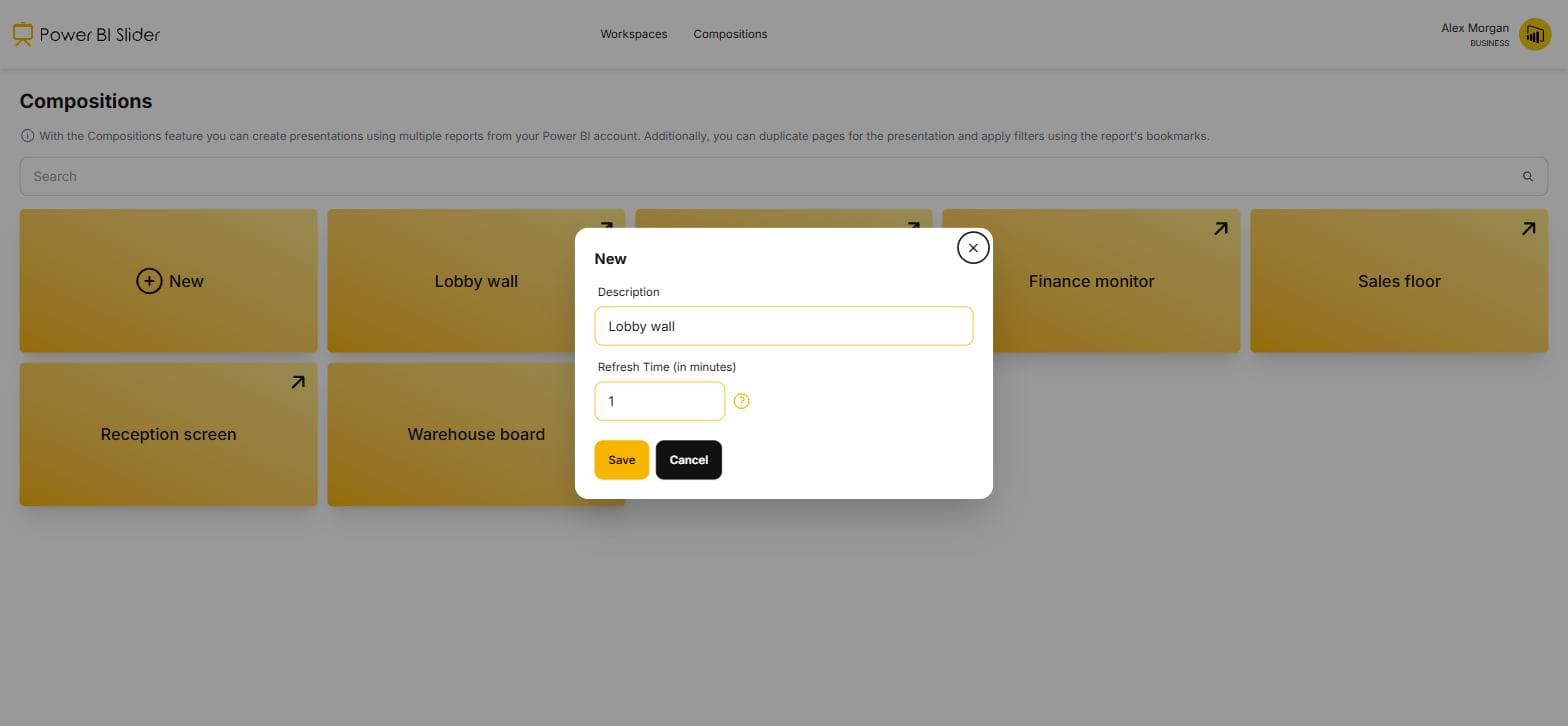
Give it a name that says where it will be shown, like Lobby wall or Operations floor. You will pick it from this name later.
3.Add a page: choose the workspace
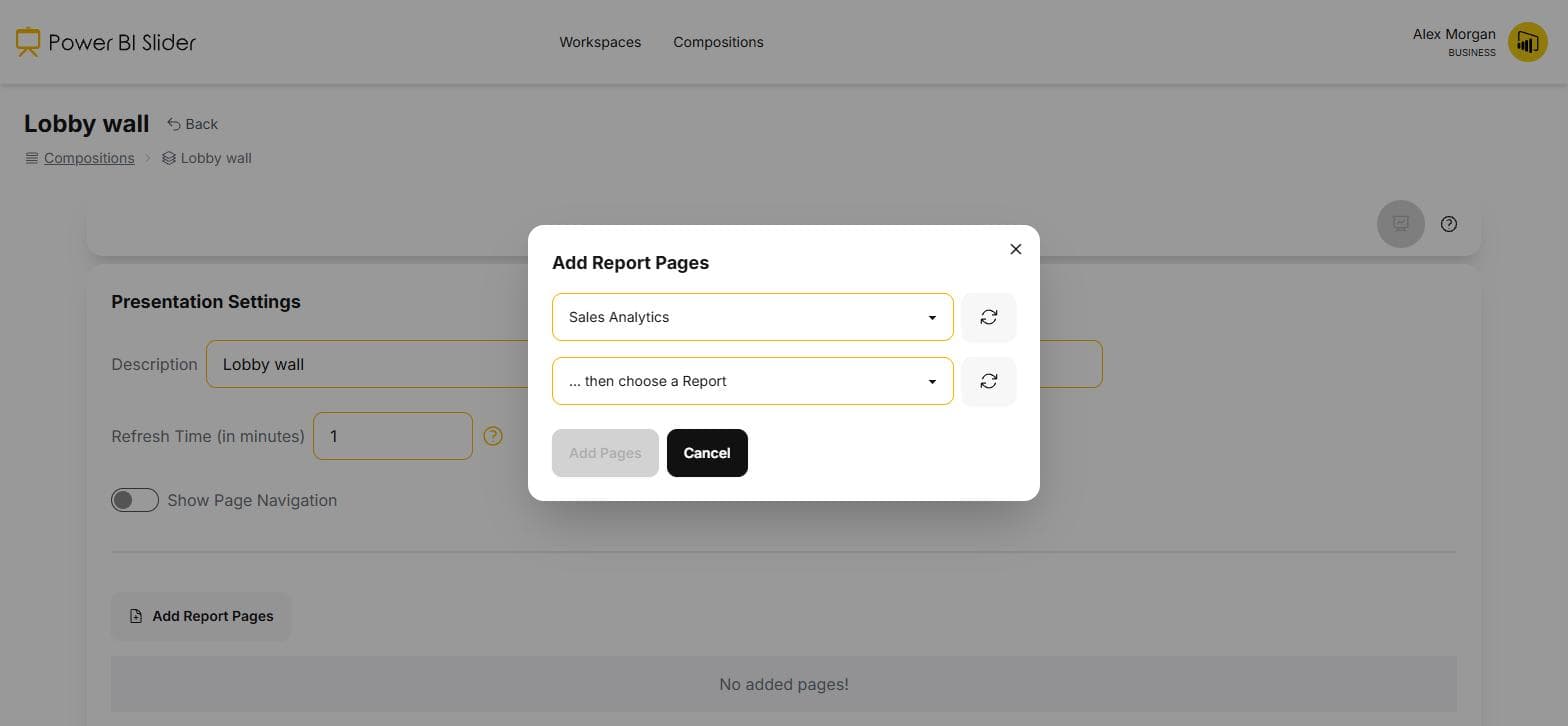
Adding a page starts with the workspace, exactly as presenting a single report does. Compositions can mix workspaces freely.
4.Add a page: choose report and page
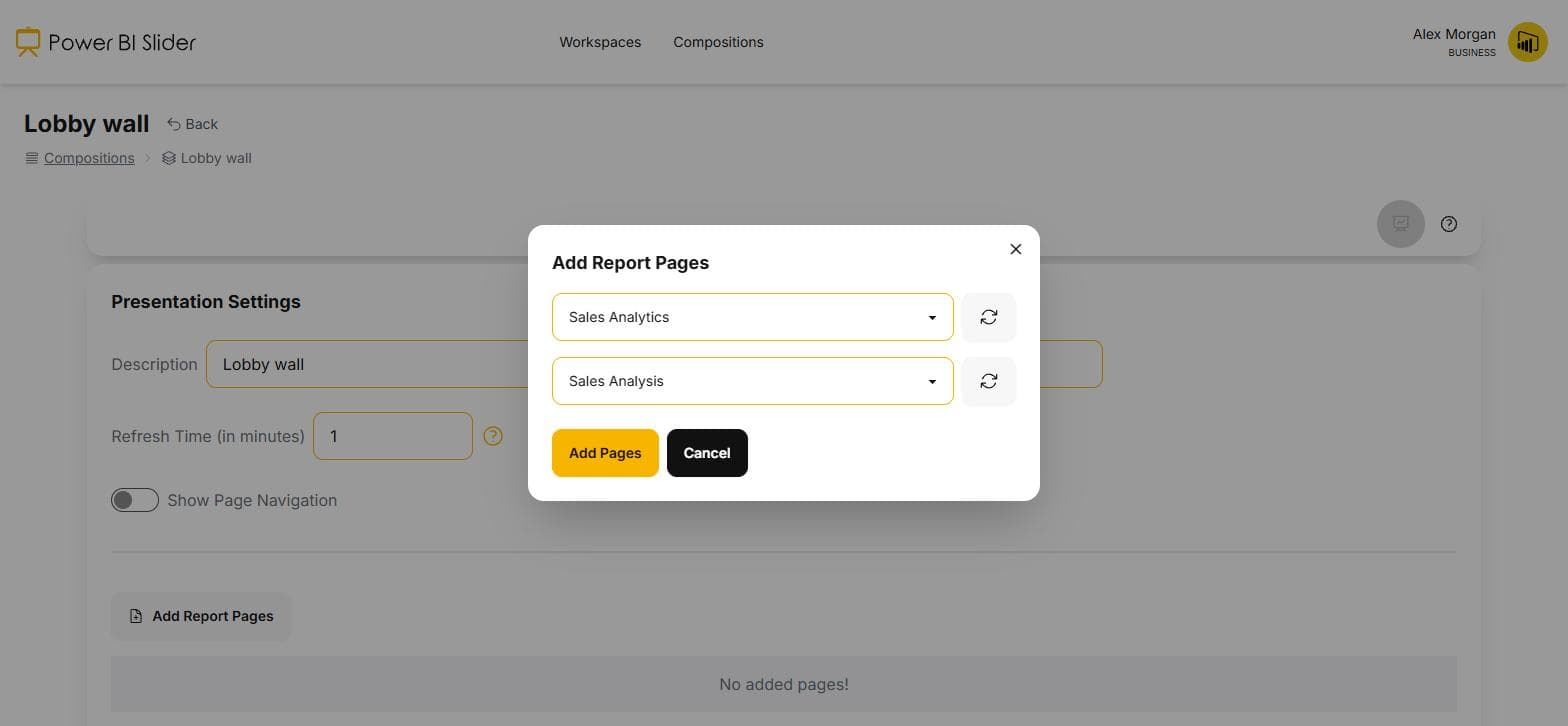
Then the report, then the individual page. Only that page joins the composition, and the rest of the report is untouched.
5.Set duration and bookmark
Each page carries its own seconds-on-screen and its own optional bookmark, so the same report page can appear twice with two different filter states.
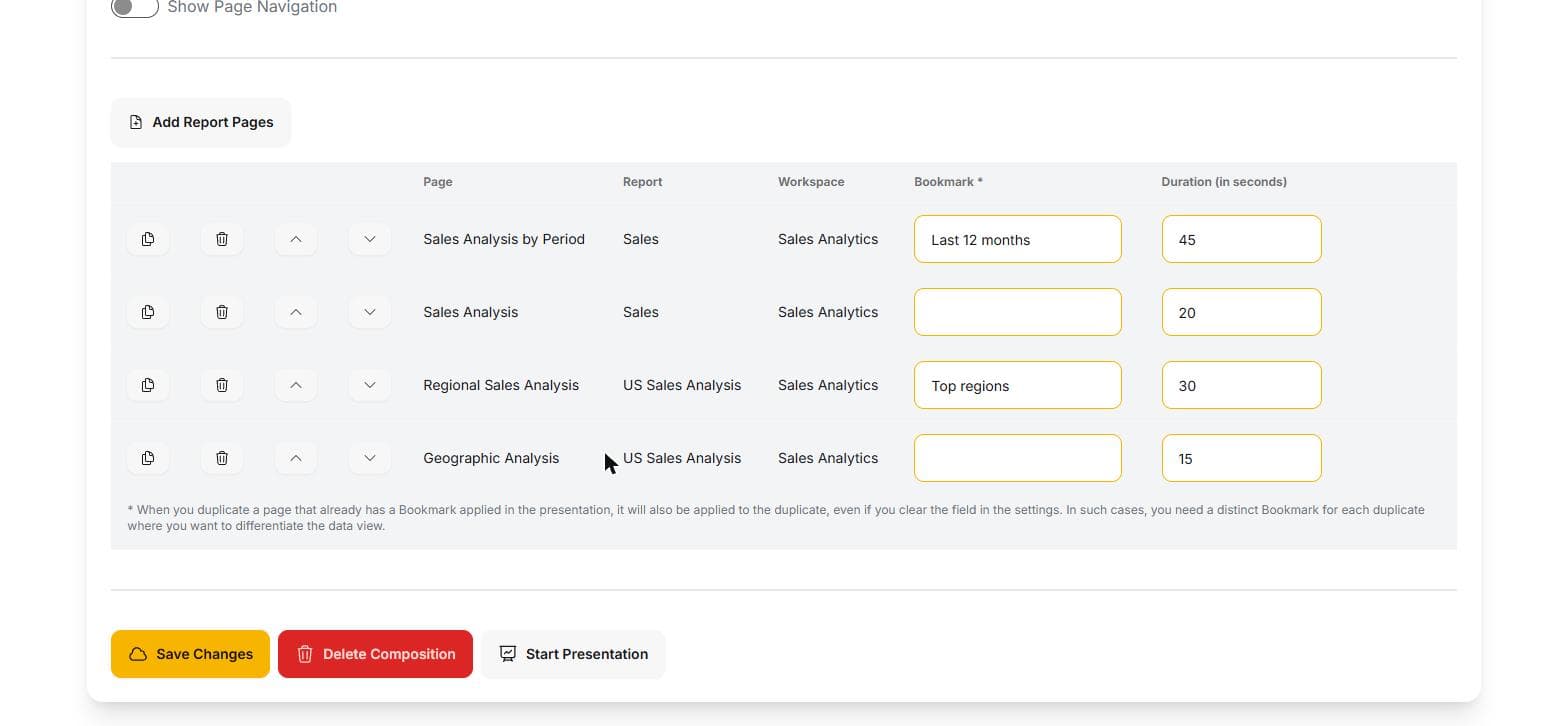
6.Reorder the pages
Drag pages into the order you want them shown. The order is the presentation; there is no separate playlist to maintain.
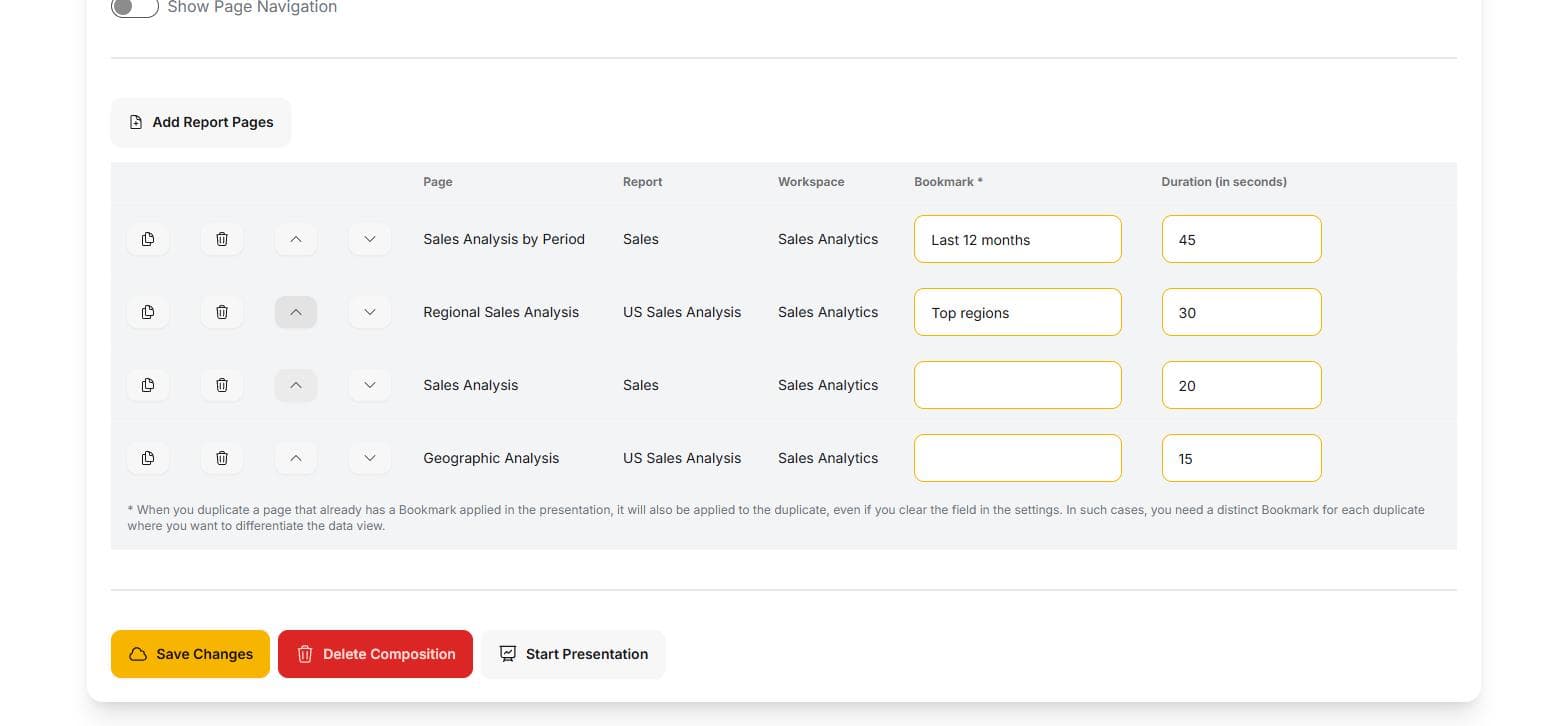
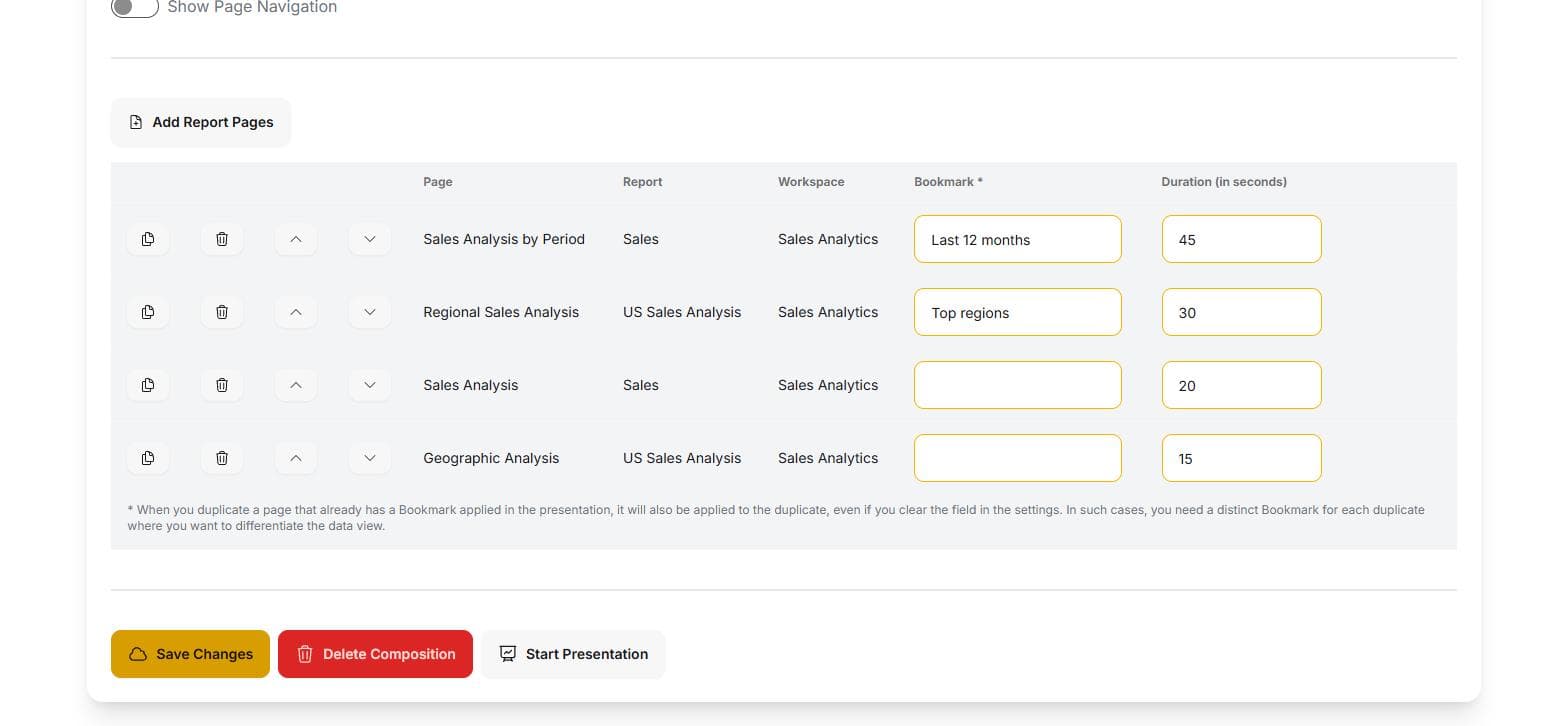
7.Save the composition
It is stored against your account rather than the device, which is what makes the same composition openable from every screen in the building.
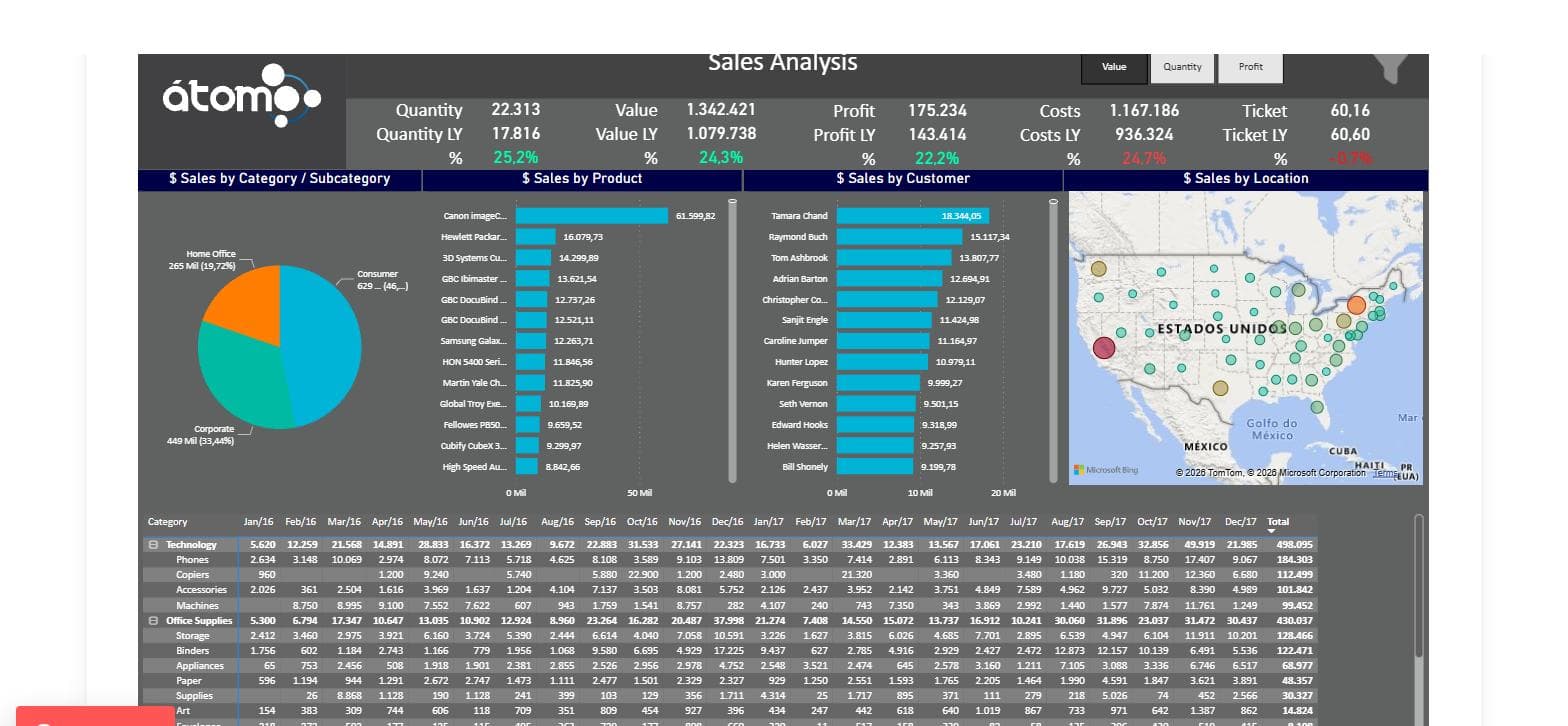
8.Start it on a screen
Open the composition and start it like any presentation. It rotates through pages and switches reports in place as it goes.
9.Set up the screen's browser once
A screen that runs all day needs three things from its browser. Keep the Microsoft session alive: tick Stay signed in when you log in and allow third-party cookies for login.microsoftonline.com, so tokens renew silently. Put the browser itself in fullscreen, with F11 or kiosk mode, so the slideshow fills the TV even after a reload. And where the browser accepts policies, add powerbislider.com to Chrome's or Edge's AutomaticFullscreenAllowedForUrls: the presentation already restarts by itself after a reload or a reboot, and that policy is what lets it take the whole screen again without anyone there to click.
Put your dashboards on the wall today
Sign in with the Microsoft account you already use for Power BI. The trial runs for 15 days and needs no card.
Start free trial