
Present a report
Take one Power BI report and put it on a screen, rotating through the pages you choose.
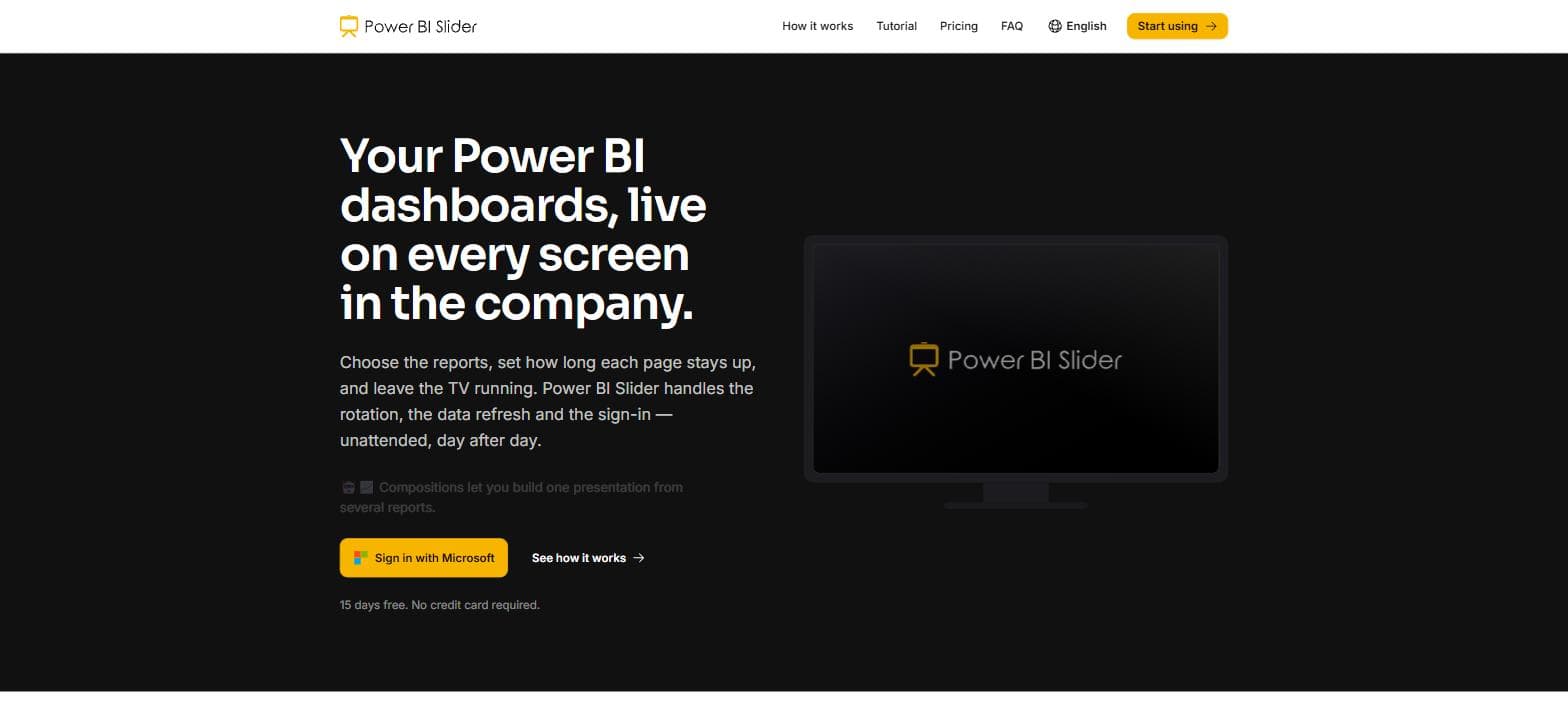
1.Sign in with Microsoft
Open Power BI Slider and sign in with the same Microsoft account you use for Power BI. There is nothing to configure: your workspaces and permissions come straight from Microsoft.
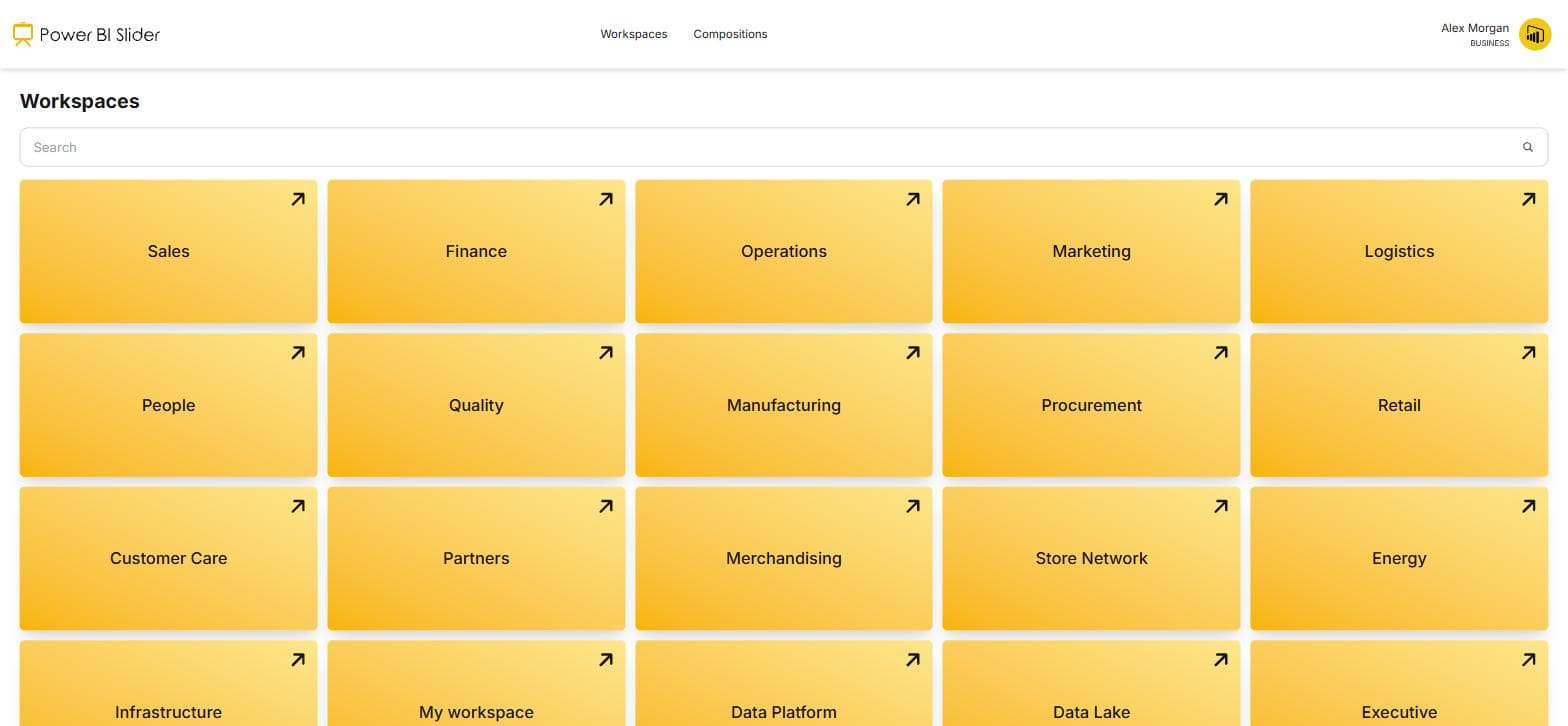
2.Choose a workspace
The Workspaces menu lists every workspace your account can read. Use the search box if the list is long.
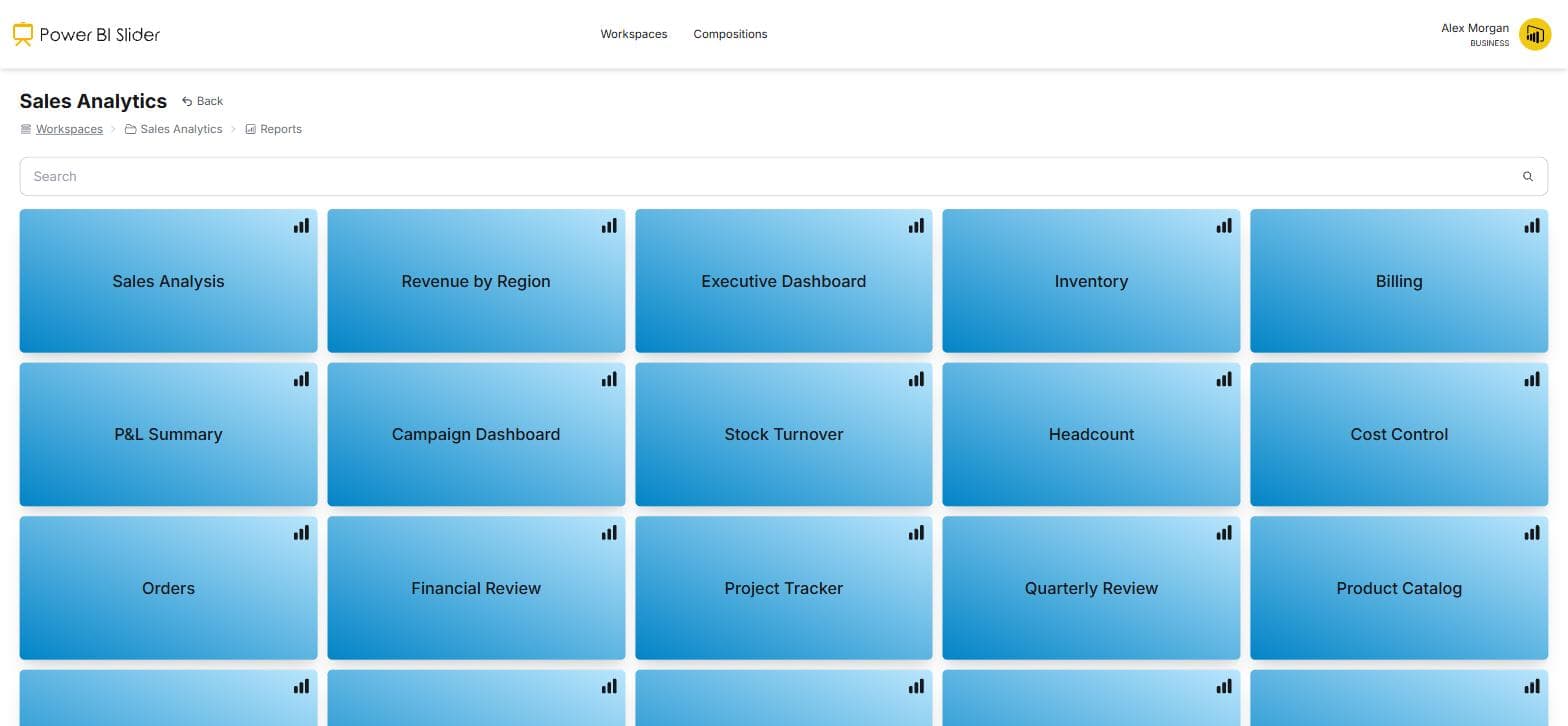
3.Choose a report
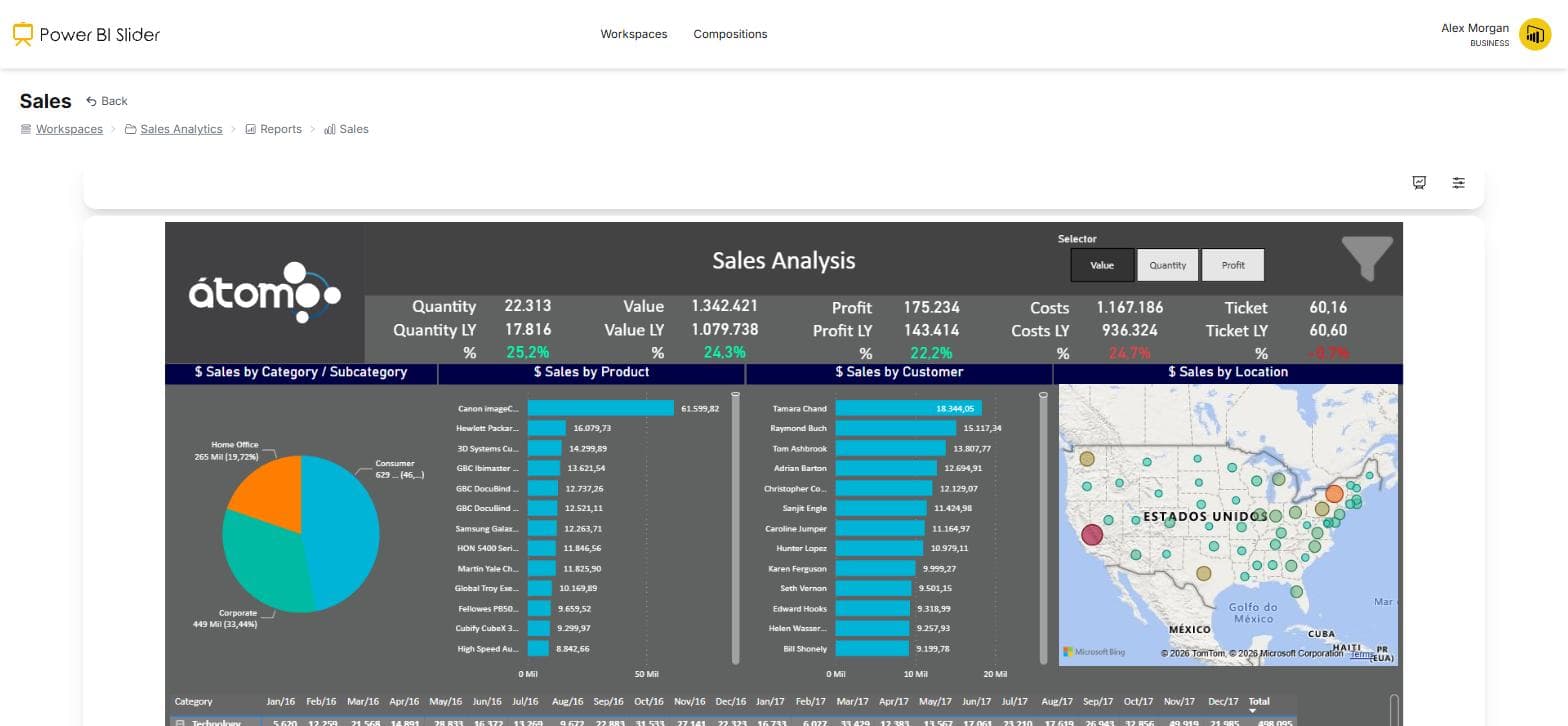
Pick the report you want on the screen. It opens embedded inside Power BI Slider, exactly as it renders in Power BI.
4.Find the toolbar
Above the report there are two buttons: Start presentation and Settings. Settings is where you decide what the presentation actually does.
5.Set the data refresh interval
Tell the platform how often to check the dataset for new data. This is independent of how fast pages rotate, so a report can refresh every minute while pages change every thirty seconds.
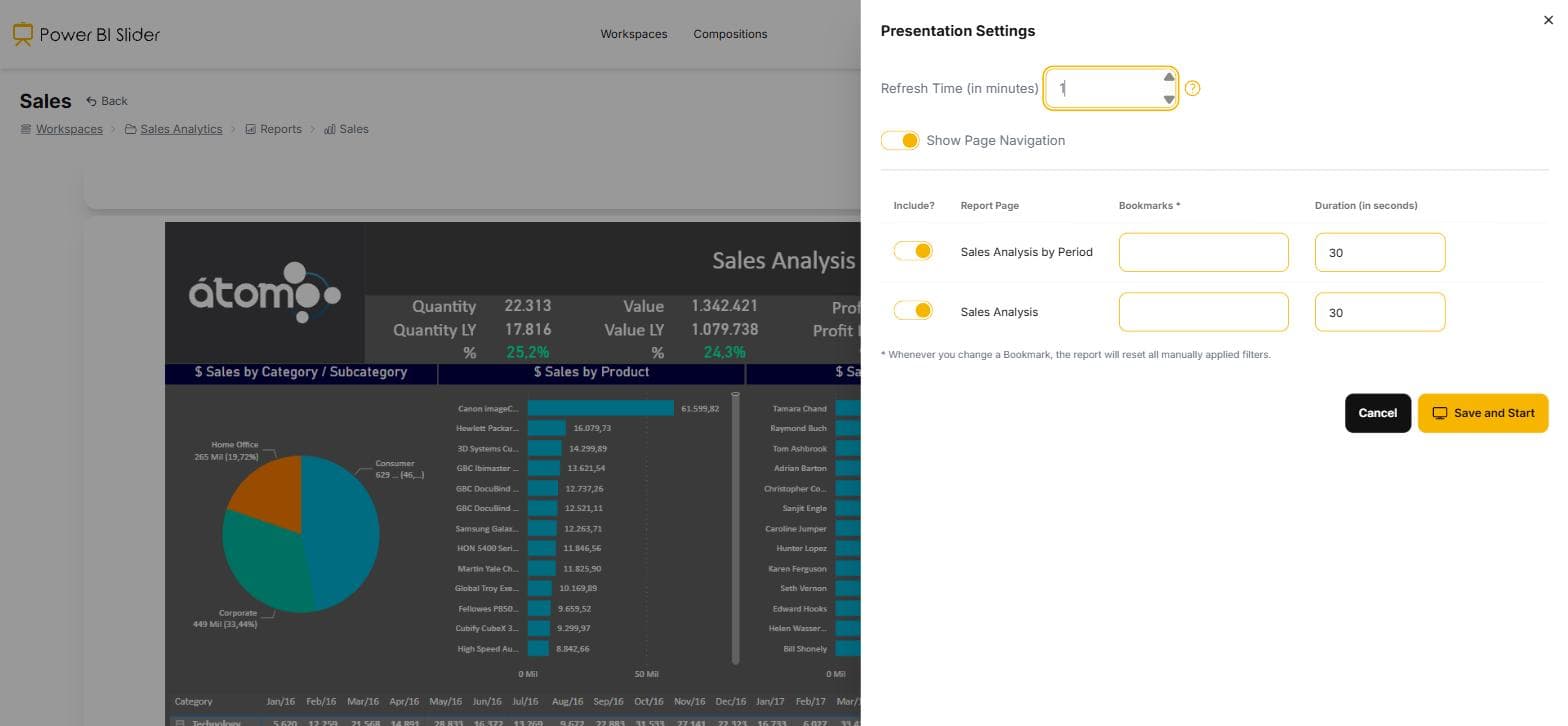
6.Choose pages, durations and bookmarks
Switch each page on or off, give it a number of seconds, and optionally pin a bookmark so the page opens with the filters and slicers you saved. A dense page can hold for a minute while a summary flashes by in ten seconds.
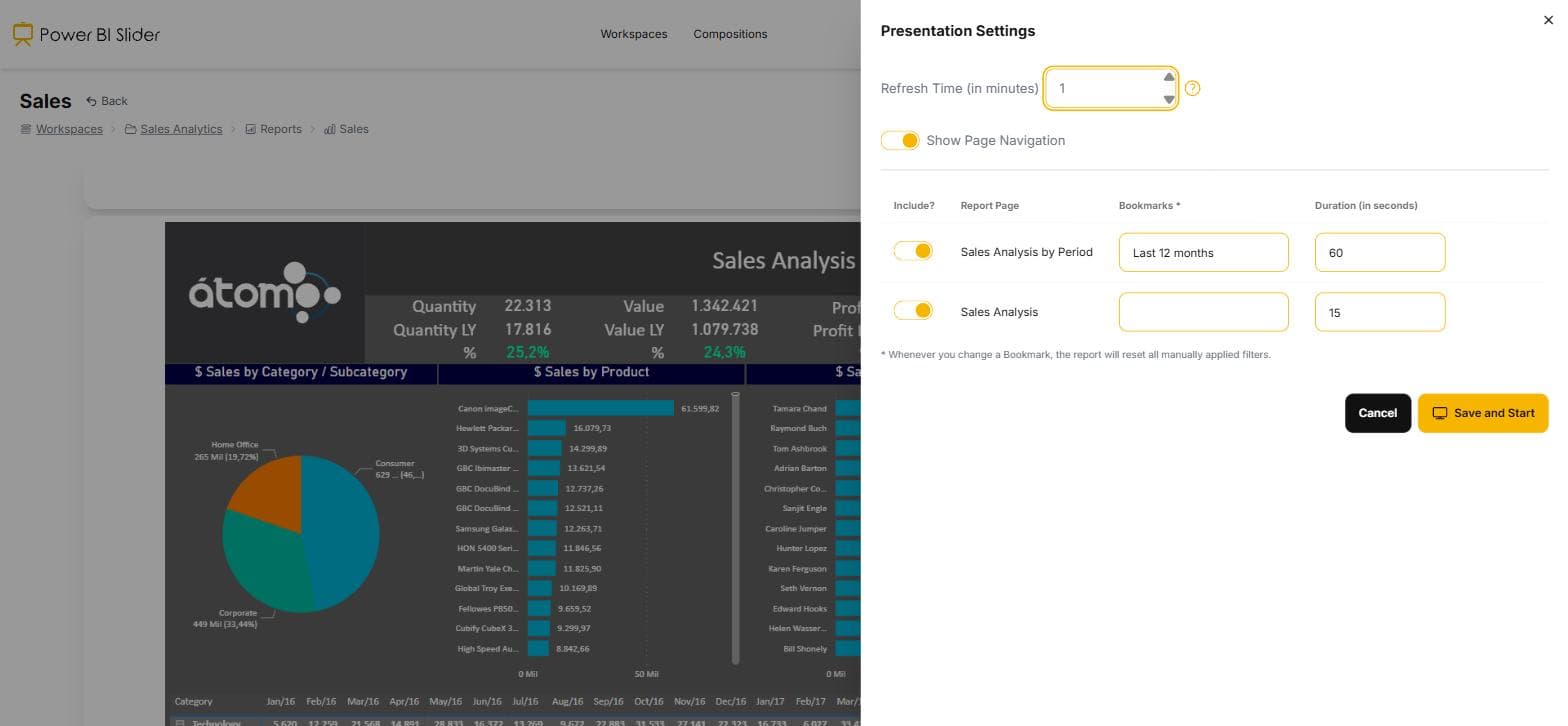
7.Save and start
Saving stores the configuration on this device, not in your account, so the lobby TV and your desk monitor can present the same report differently. Then the slideshow begins.
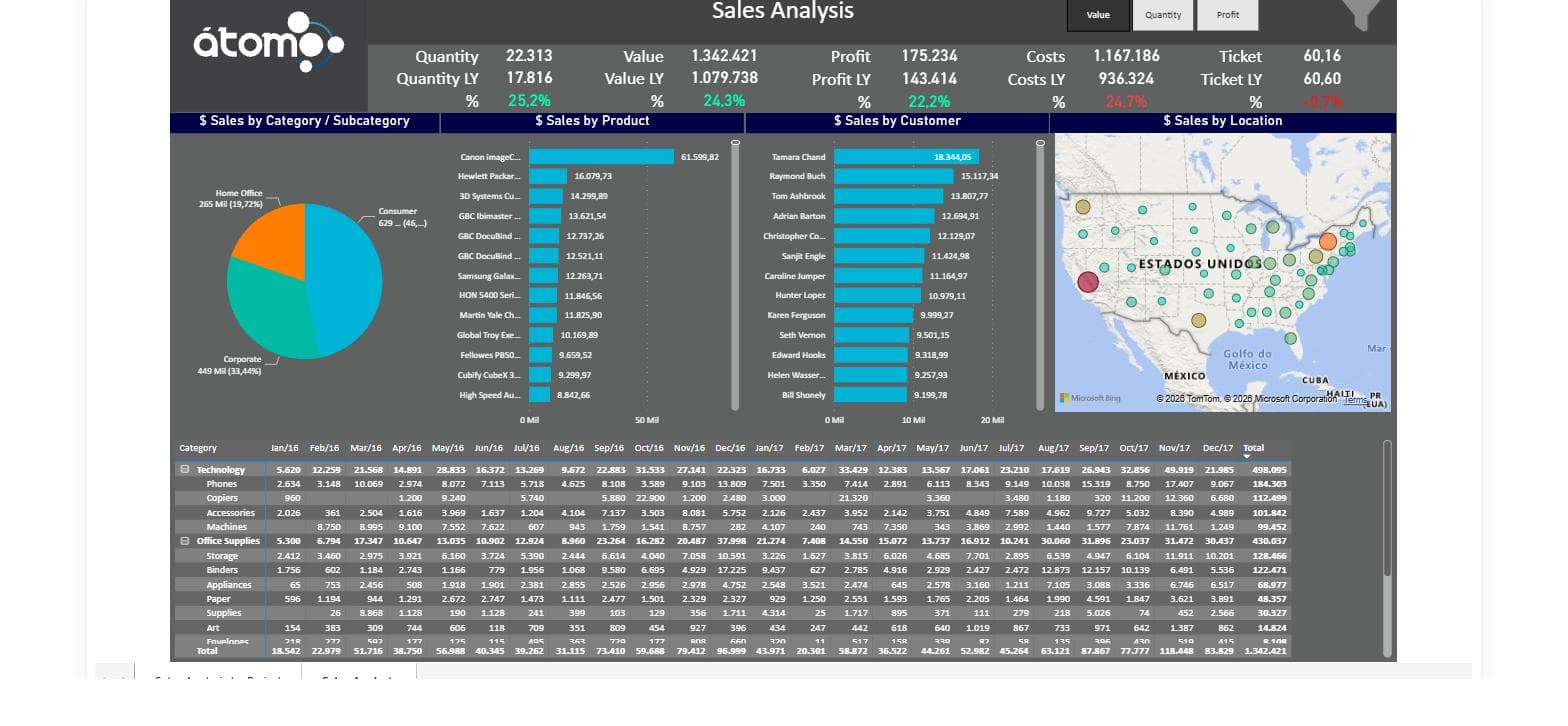
8.Leave it running
The presentation loops forever: after the last active page it returns to the first. It renews its own session, recovers from an expired token, and fully reloads the report every ten cycles so a newly published version reaches the screen on its own.
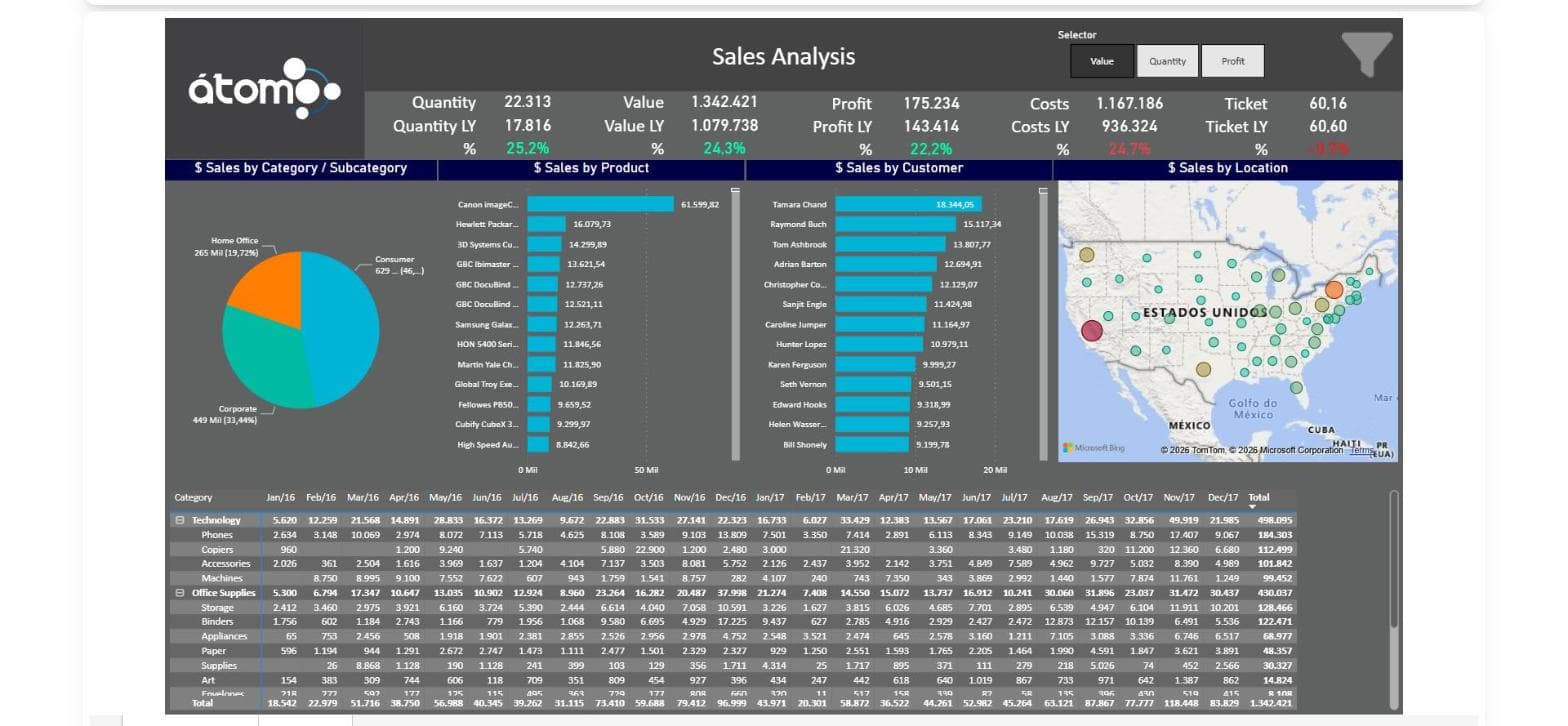
9.Set up the screen's browser once
A screen that runs all day needs three things from its browser. Keep the Microsoft session alive: tick Stay signed in when you log in and allow third-party cookies for login.microsoftonline.com, so tokens renew silently. Put the browser itself in fullscreen, with F11 or kiosk mode, so the slideshow fills the TV even after a reload. And where the browser accepts policies, add powerbislider.com to Chrome's or Edge's AutomaticFullscreenAllowedForUrls: the presentation already restarts by itself after a reload or a reboot, and that policy is what lets it take the whole screen again without anyone there to click.
Put your dashboards on the wall today
Sign in with the Microsoft account you already use for Power BI. The trial runs for 15 days and needs no card.
Start free trial